
AI Image Generator - CreArt
YawaiArt & Design
4.22.47K Reviews
- Version
- 3.0.1
- Installs
- 1.00M
- Age Rating
- Teen
Screenshots
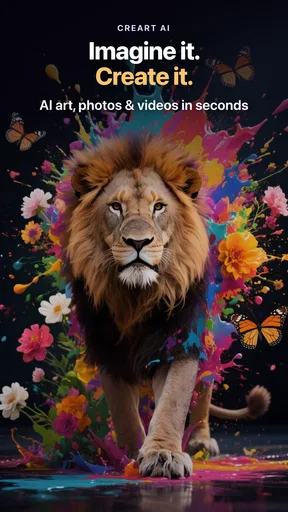
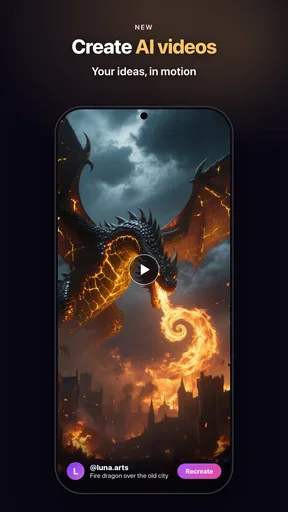
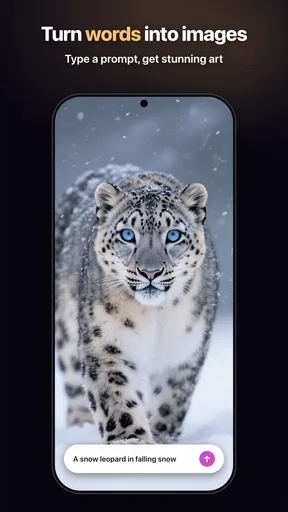
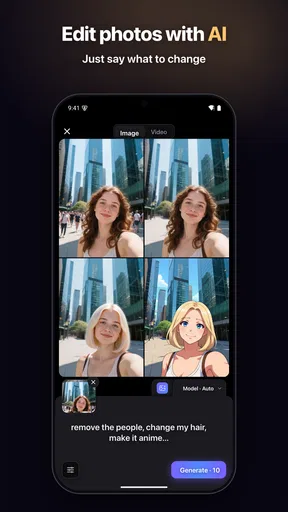
Our Review of AI Image Generator - CreArt
 Analysis by Appyee
I've recently had the chance to explore the world of digital artistry using the AI Image Generator - CreArt, and let me tell you, it’s a fascinating journey. This app is designed for both amateur and professional artists who want to create stunning visuals without the hassle of traditional methods. Whether you're looking to spice up your Instagram feed or create a unique piece of art, CreArt has got you covered.
What stood out to me most was how much the experience depends on having a reliable connection. AI image generation is not quite like drawing on a blank canvas with a tool that simply sits on your phone: sending a prompt, waiting for a result, and moving between creation and sharing can all make network access part of the creative rhythm. I’d plan a session around that, especially if I’m away from home and hoping to make something quickly.
That connection requirement shapes the best use cases. I can imagine opening CreArt while planning a birthday invitation, testing a few visual directions for a personal project, or making a playful image to share with friends. Those are enjoyable, low-pressure tasks where trying an idea is more important than controlling every tiny detail. For a deadline-sensitive design, I’d keep a conventional editor nearby and avoid making the final export depend on a last-minute mobile connection.
Getting Started with CreArt
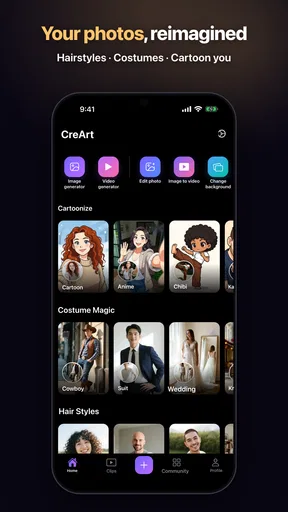
Once you download and install the app, you’re greeted with a clean and intuitive interface. The AI Image Generator - CreArt doesn’t waste time with complicated menus. Instead, it focuses on what matters most: your creativity. Within minutes, I was diving into a world of endless possibilities.
The setup process is a breeze. You simply log in, and you're ready to start creating. The app also offers a quick tutorial to get you up to speed, which I found incredibly helpful. It’s like having a digital art assistant guiding you through the basics.
Starting a Session Without Wasting Time
On a phone, I find it helps to prepare the idea before opening an image generator. I jot down the subject, mood, and one or two visual details I care about, rather than composing a long description while switching between apps. For instance, “a quiet reading corner, warm afternoon light, cut-paper illustration” gives me a more useful starting point than a vague request for something beautiful. A focused prompt is easier to revise when the first result is not quite right.
I’d also treat the first image as a draft, not a verdict on the idea. If the result misses the mark, changing one element at a time makes it easier to understand what affected the outcome. Altering the subject, style, and lighting all at once may produce a different picture, but it won’t teach me which choice helped. That small habit makes experimentation feel more deliberate, especially when I’m creating on a small screen.
CreArt is a free app in the art and design category, developed by Yawai. It has a 4.3 average from around 96,000 ratings, and it has been installed over a million times. It is rated Teen, so I’d keep that audience in mind when deciding whether it suits a younger user. The app’s current version is 2.7.2, and it includes in-app purchases ranging from $4.49 to $89.99 per item. I’d explore the free experience first and check purchase details carefully before committing, rather than assuming every creative option is included at no cost.
Features That Spark Creativity
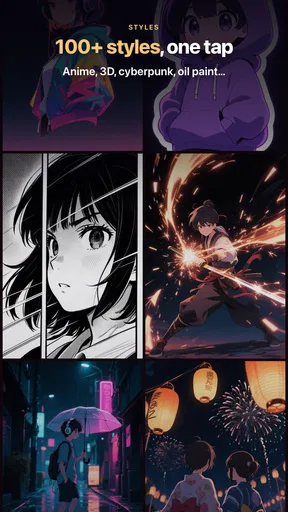
One of the standout features of CreArt is its vast array of templates and styles. Whether you're into abstract, modern, or classic art, there’s something here for everyone. I personally enjoyed experimenting with the abstract styles, which allowed me to create vibrant and dynamic pieces in just a few clicks.
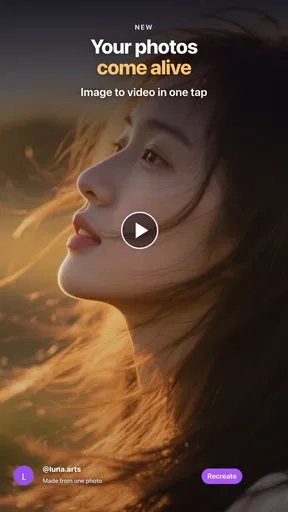
The app uses advanced AI technology to generate images based on your inputs. You can start with a blank canvas or upload an existing image to transform it into something extraordinary. The AI does a fantastic job of interpreting your choices and blending them into a cohesive artwork.
Another feature that caught my eye is the real-time editing capabilities. You can tweak colors, adjust brightness, and apply filters all while watching your creation come to life. It's incredibly satisfying to see your artwork evolve in real time.
Making the Most of Generated Images
A useful way to judge an AI image is to decide what job it needs to do before polishing it. A lively abstract image may work well as a social post or a mood-board reference, while a design that needs legible lettering, exact brand colors, or a carefully arranged layout may be better finished in a dedicated graphics editor. I wouldn’t expect an image generator to replace precise typography or a professional layout workflow. CreArt is most appealing when the image itself is the starting point, not when every element has to be exact.
For a small personal project, I’d make a few alternatives and compare them at the size where they’ll actually be used. A composition that looks exciting on a phone can feel crowded as a profile image or cropped awkwardly in a post. Thinking about the final shape early helps me choose an image with room for text or a subject that remains clear after cropping. It’s a simple check, but it can save time spent polishing a picture that does not fit its intended use.
Using an existing image as a starting point can also be a different kind of decision from generating an image from a description. I’d choose an image I’m comfortable transforming and keep a separate copy of the original, so the experiment doesn’t replace something I may want later. This is especially useful for a personal creative exercise: I can explore a new look without treating the result as a faithful edit or a guaranteed match to the source.
Ease of Use
Despite its powerful features, CreArt remains user-friendly. You don’t need to be a tech whiz to navigate the app. The developers have done an excellent job of striking a balance between functionality and simplicity. The tools are intuitive, and the learning curve is minimal.
Even if you’re new to digital art, the app makes it easy to produce professional-looking pieces. The drag-and-drop interface, combined with the AI’s smart suggestions, means you spend less time figuring things out and more time creating.
That accessibility is a strength, but I wouldn’t confuse an easy interface with complete creative control. AI interpretation can be surprising, and a result may not follow every detail of a prompt. If I need exact placement, repeatable visual consistency, or careful manual drawing, a layer-based illustration app is a better fit. CreArt makes more sense when I’m open to choosing among interpretations than when I need to execute a tightly specified design.
When the Network Interrupts the Flow
Because the creative process may involve online generation, I’d avoid beginning an important task at the exact moment I’m entering a weak-signal area. If a request stalls or the app stops responding, I’d first check whether the connection has returned, then reopen the project and see what remains available before trying the same action repeatedly. That approach is less frustrating than tapping through several retries without knowing whether the first request is still working.
For a casual session, a delay is only an annoyance; for something I need to send immediately, it changes the risk. I’d create the image ahead of time, review it while connected, and keep a copy in the place I plan to share from. If I’m on a train or moving between networks, I’d save the prompt text separately before experimenting. That way, a dropped connection does not also mean losing the wording I spent time refining.
When a result is not what I expected, I’d distinguish a creative mismatch from a connection problem. A picture that appears but gets the mood wrong calls for a more focused prompt; a request that never seems to finish calls for checking the network and waiting before submitting again. Keeping those two problems separate helps avoid unnecessary changes to a prompt that was already doing its job.
Sharing and Community
Once you're happy with your masterpiece, sharing it is a breeze. CreArt integrates seamlessly with social media platforms, allowing you to showcase your work to the world. I found the sharing options to be robust, offering high-quality exports that ensure your art looks great on any platform.
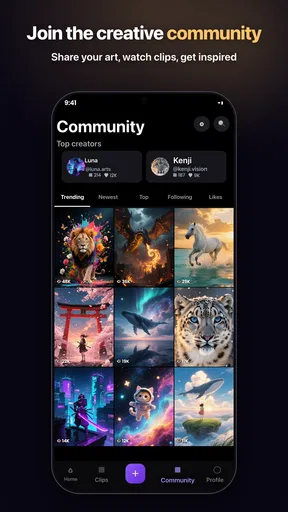
The app also has a vibrant community of users. You can join groups, participate in challenges, and even collaborate with other artists. It’s a great way to get inspired and receive feedback on your work.
Sharing is also where I’d be thoughtful about data and privacy. Before uploading an image, I’d make sure it is one I have the right to use and am comfortable putting into a creative app. I’d be cautious with personal photos, confidential documents, or anything containing details I would not want to share beyond my own device. That is a sensible habit for any image service, not a claim about how this particular app handles uploads.
On mobile data, I’d save image experiments for when I have a stable connection and avoid repeatedly requesting new versions just because I’m unsure what I want. A clear prompt and a deliberate comparison are more useful than a long sequence of vague attempts. If I’m watching data use, I’d also wait until I’m on a connection I’m comfortable using before uploading a source image or sharing a finished result. These small choices help keep a creative session focused rather than turning it into background network activity.
Who Will Enjoy It—and Who May Prefer Another Tool
I’d recommend CreArt to curious beginners, social-media users who want original visual ideas, and artists who enjoy using AI as a brainstorming partner. It can be a fun way to explore styles without first learning a full digital painting workflow. Someone preparing a mood board can use generated images to test a direction, while a casual user might make a distinctive image for a message or a personal post.
I’d be less likely to choose it as my main tool for client work that demands exact revisions, consistent characters across a set, precise text, or a predictable production process. In those situations, a traditional drawing app or a graphics editor offers more direct control. A general-purpose image generator on another platform may also suit someone who prioritizes a different workflow, but the useful comparison is practical: does it give you the control, connection reliability, and editing precision your task needs?
For an everyday example, imagine I want a cheerful image for a friend’s handmade-market announcement. I could use CreArt to explore a few visual moods, pick one that feels right, and then finish the announcement text in a separate editor. I would do the generation before I’m rushing out the door, check how the artwork crops on a phone, and share only after I’m happy with the result. That division of labor uses the app for its creative strength without asking it to handle every step of a finished design.
My Personal Take
I’ve always been intrigued by the intersection of technology and creativity, and CreArt delivers on both fronts. It’s a tool that doesn’t just cater to artists but also encourages anyone to explore their creative side. The AI-driven approach offers a unique twist, making the process feel fresh and innovative.
While no app is without its quirks, CreArt manages to deliver a seamless experience overall. It’s perfect for those moments when you want to create something beautiful without being bogged down by technical details. The app empowers you to focus on what truly matters: your vision.
My main practical reservation is that a mobile creative session can be interrupted by connectivity, and an AI result still needs a human eye before it is ready to use. I’d treat the output as material to select and refine, not as a guaranteed finished design. I’d also be mindful of the in-app purchase range and decide what I’m willing to spend only after I understand which parts of the experience I personally value.
In the end, whether you’re an artist seeking new tools or a casual user looking to dabble in digital art, the AI Image Generator - CreArt is worth checking out. It’s a fun, accessible, and powerful addition to the world of creative apps.
My Connectivity Verdict
I’d use CreArt when I have a clear idea to explore, a reasonably steady connection, and enough time to judge the result instead of accepting the first image in a hurry. It is a better fit for visual inspiration and personal experimentation than for tasks where a brief network interruption or an imperfect interpretation would cause real trouble. If you want a friendly route into AI-assisted art and are comfortable treating its images as drafts to select and adapt, I think it is worth trying. If your priority is offline certainty, exact drawing control, or a tightly managed professional workflow, I’d choose a different kind of art app for that job.
Verdict
Strengths of AI Image Generator - CreArt
- User-friendly interface for easy navigation.
- High-quality image outputs with various styles.
- Quick processing time for image generation.
- Wide range of customization options available.
- Frequent updates with new features.
Limitations of AI Image Generator - CreArt
- Requires a stable internet connection.
- Some features behind a paywall.
- Limited free credits for new users.
- Occasional ads in the free version.
- May consume significant battery life.
Other Releases by Yawai
View All
Inkit - AI Tattoo Generator
Art & Design4.0
Similar Picks in This Category
View All
Canva: AI Photo & Video Editor
Canva4.8

PENUP – Drawing-sharing SNS
Samsung Electronics Co., Ltd.4.5

Crafto
Kutumb App4.6

Sketchbook
Sketchbook4.1

ibis Paint X
ibis inc.4.5

Adobe Express: AI Photo, Video
Adobe4.6
Frequently Asked Questions
What are the main features of AI Image Generator - CreArt?
AI Image Generator - CreArt offers a variety of features, including the ability to generate high-quality images from text prompts, apply artistic filters, and customize images with various styles. It also supports batch processing and offers easy sharing options across social media platforms. This makes it a versatile tool for artists and designers alike.
Is AI Image Generator - CreArt free to use?
AI Image Generator - CreArt offers a free version with limited features and a premium subscription for access to advanced tools and unlimited usage. The premium version provides more style options and higher resolution outputs. Users can choose the plan that best suits their needs and budget.
Does AI Image Generator - CreArt require an internet connection?
Yes, AI Image Generator - CreArt requires an internet connection to function effectively. The app uses cloud-based AI algorithms to process images, ensuring high-speed and high-quality results. An active connection is necessary to access these features and stay updated with the latest improvements.
How user-friendly is AI Image Generator - CreArt for beginners?
AI Image Generator - CreArt is designed with a user-friendly interface, making it accessible for beginners. It includes guided tutorials and intuitive controls, allowing users to easily navigate through features and create stunning images with minimal effort. This makes it suitable for both new users and experienced artists.
Can AI Image Generator - CreArt be used for commercial purposes?
Yes, AI Image Generator - CreArt can be used for commercial purposes, especially with the premium version. Users should review the terms of service to understand any limitations regarding commercial use, but generally, it allows for the creation of images to be used in advertising, social media, and other commercial projects.
